![xcelerate-black-color-1.png]](https://www.xlrestorationsoftware.com/hs-fs/hubfs/xcelerate-black-color-1.png?height=40&name=xcelerate-black-color-1.png)
-
Login to the Merchant Portal at payments.xlrestorationsoftware.com
-
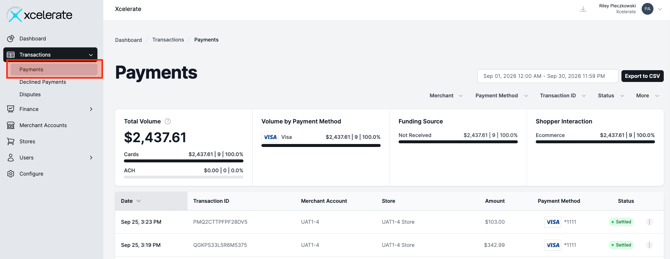
Go to Payments -> Transactions and open the transaction you would like to refund.
-
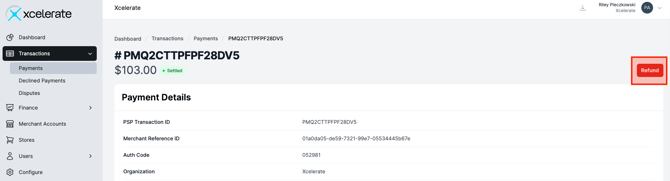
Click the REFUND button on the right side of the screen.
-
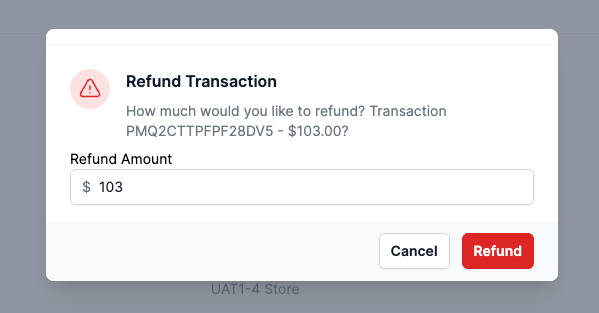
Input the amount that you would like to refund and click refund. This step cannot be undone. Please ensure you are refunding the correct customer/invoice before processing.
-
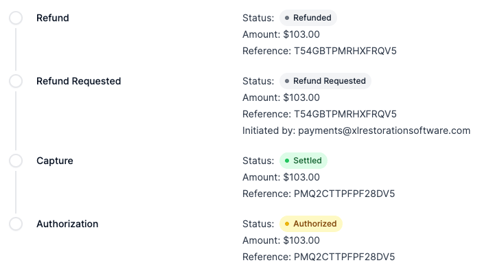
Scroll down to the activity and you will see the refund is requested, then accepted.
A few tips about refunds...
- Refunds are deducted from payouts before they are sent to your bank account. This is reflected when viewing the payout in the merchant portal.
- Processing fees are reversed and you are only charge a 30 cent refund fee.
- Refunds typically deposit into your customer's account in a few days but it can take up to 40 days depending on the customer's bank. If a customer has not received a refund that was processed, we recommend directing the customer to contact their bank for specifics.