![xcelerate-black-color-1.png]](https://www.xlrestorationsoftware.com/hs-fs/hubfs/xcelerate-black-color-1.png?height=40&name=xcelerate-black-color-1.png)
Surcharging lets you add a card surcharge to an invoice. Use these steps to turn it on for your Xcelerate Pay account.
Before you get started- Xcelerate Pay: You need an Xcelerate Pay account.
- QuickBooks Online: Your Xcelerate site needs to be connected to QuickBooks Online (QBO).
- Approval: Payments support must enable surcharging for your Xcelerate site before the surcharge option appears on invoices.
- Send an email to payments-support@xlrestorationsoftware.com.
- In your email, ask the team to enable surcharging for your Xcelerate site, and include your Xcelerate URL.
- In QBO, create a new product or service for the surcharge.
- Name the product or service Surcharge.
- In Xcelerate, go to Admin Settings > Integration > QBO Configure.
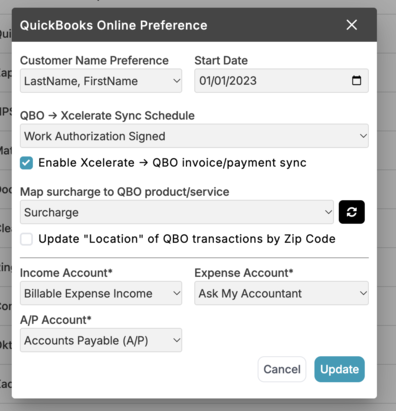
- In the QuickBooks Online Preference window, select the Enable Xcelerate → QBO invoice/payment sync checkbox.
- Click the Map surcharge to QBO product/service dropdown menu, then select the product or service you created for the surcharge.
- If the Surcharge item does not appear in the list, click the refresh button next to the dropdown menu to reload the list, then select it.
- Click Update.
After you complete the steps above, the surcharge option appears when you create an invoice.
- Create a new invoice.
- In the bottom left, turn on the Add card surcharge toggle.
- Click Save Invoice or Save & Send Email.
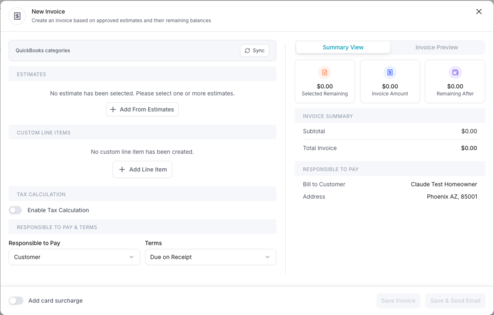
Please note: The Add card surcharge option does not appear until payments support has enabled surcharging for your Xcelerate site.