![xcelerate-black-color-1.png]](https://www.xlrestorationsoftware.com/hs-fs/hubfs/xcelerate-black-color-1.png?height=40&name=xcelerate-black-color-1.png)
Create job numbers that fit your workflow by building a custom format in Xcelerate. Before you start, keep two things in mind. You need admin access to make these changes. Custom job numbers apply to jobs you set up after you turn this customization on. Existing job numbers will stay the same.
Step 1: Log in to your Xcelerate environment.
Step 2: Go to your Admin Settings.
Step 3: Scroll down to Job Intake.
Step 4: Select Job Number Format.
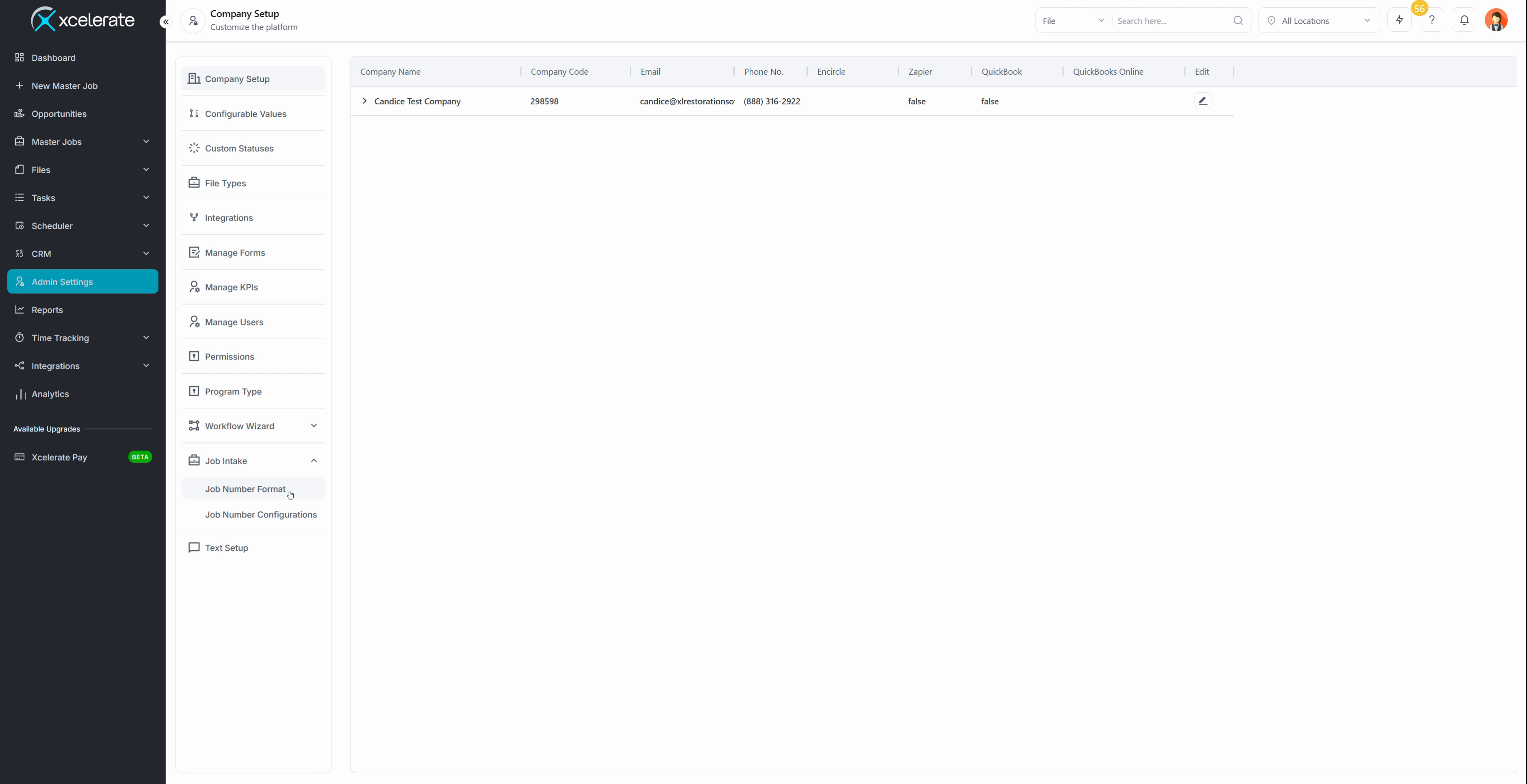
Step 5: Review the screen. You will see your current job number format, the format builder, the separator, and the sequences.
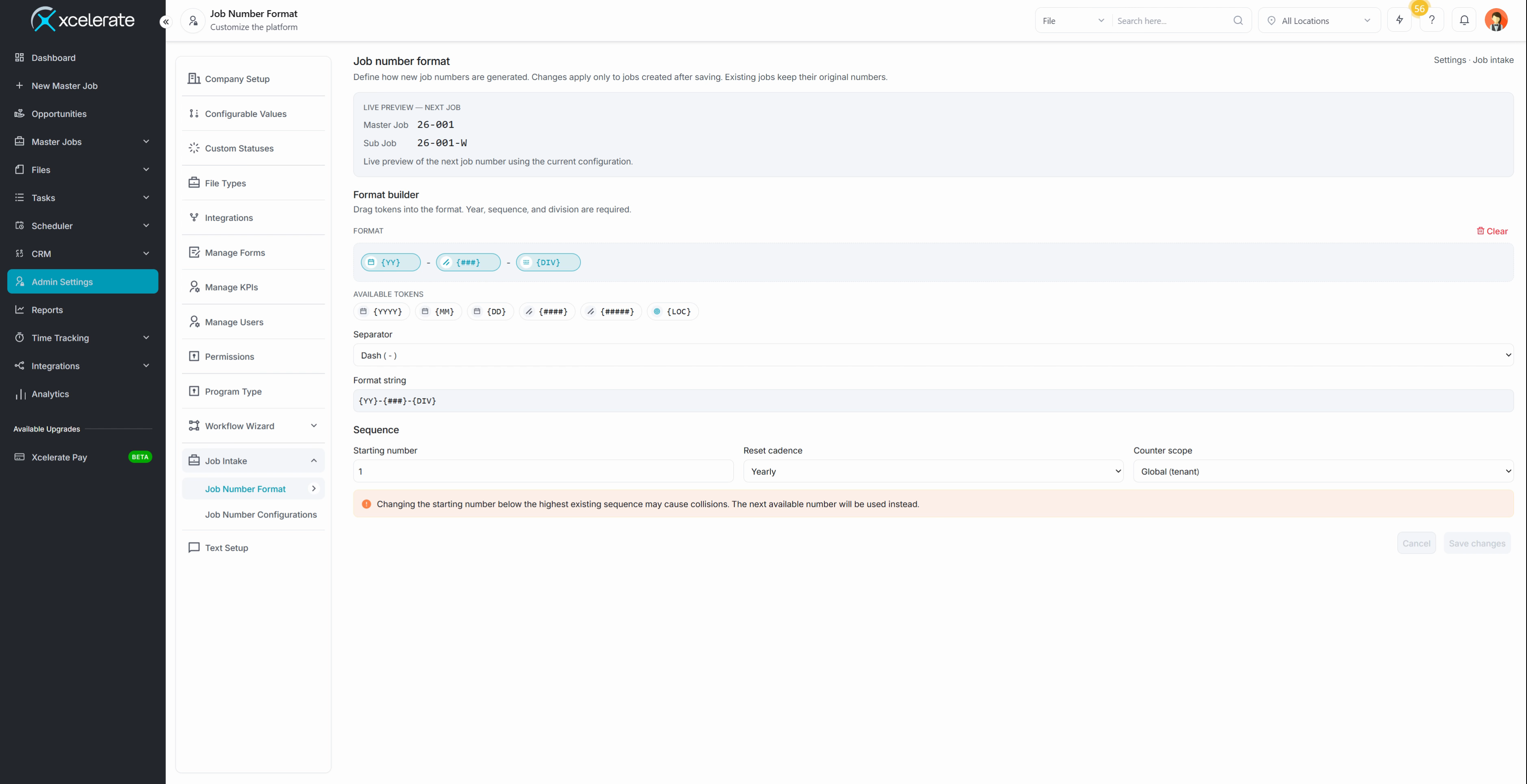
Step 6: Check your current format. In this example, it is a two-digit year, the job number, and then the division. The division shows on your Sub Job or File, so it reflects the type of file opened for that Master Job number.
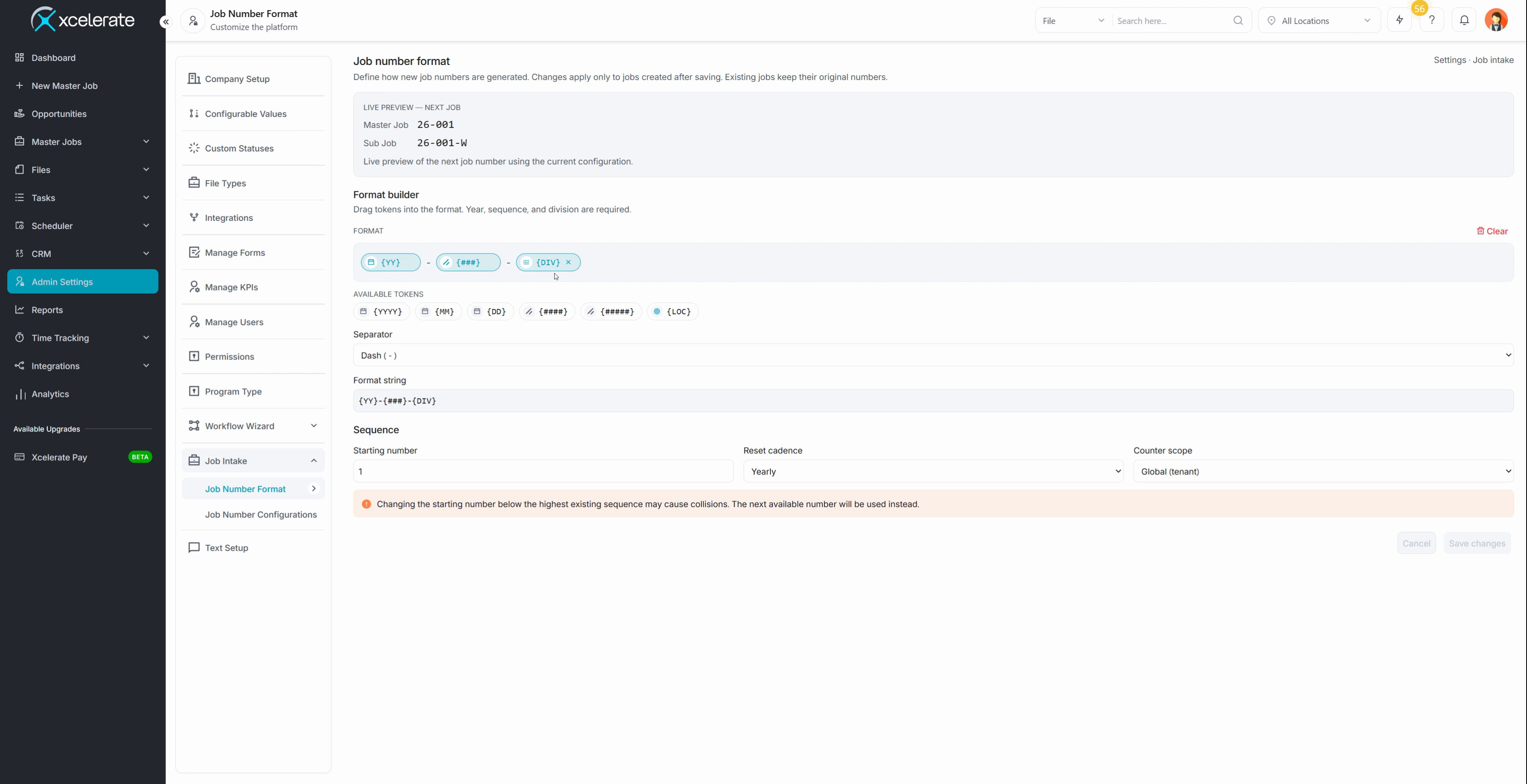
Step 7: Add a token. To add a location, find Location under Available Tokens.
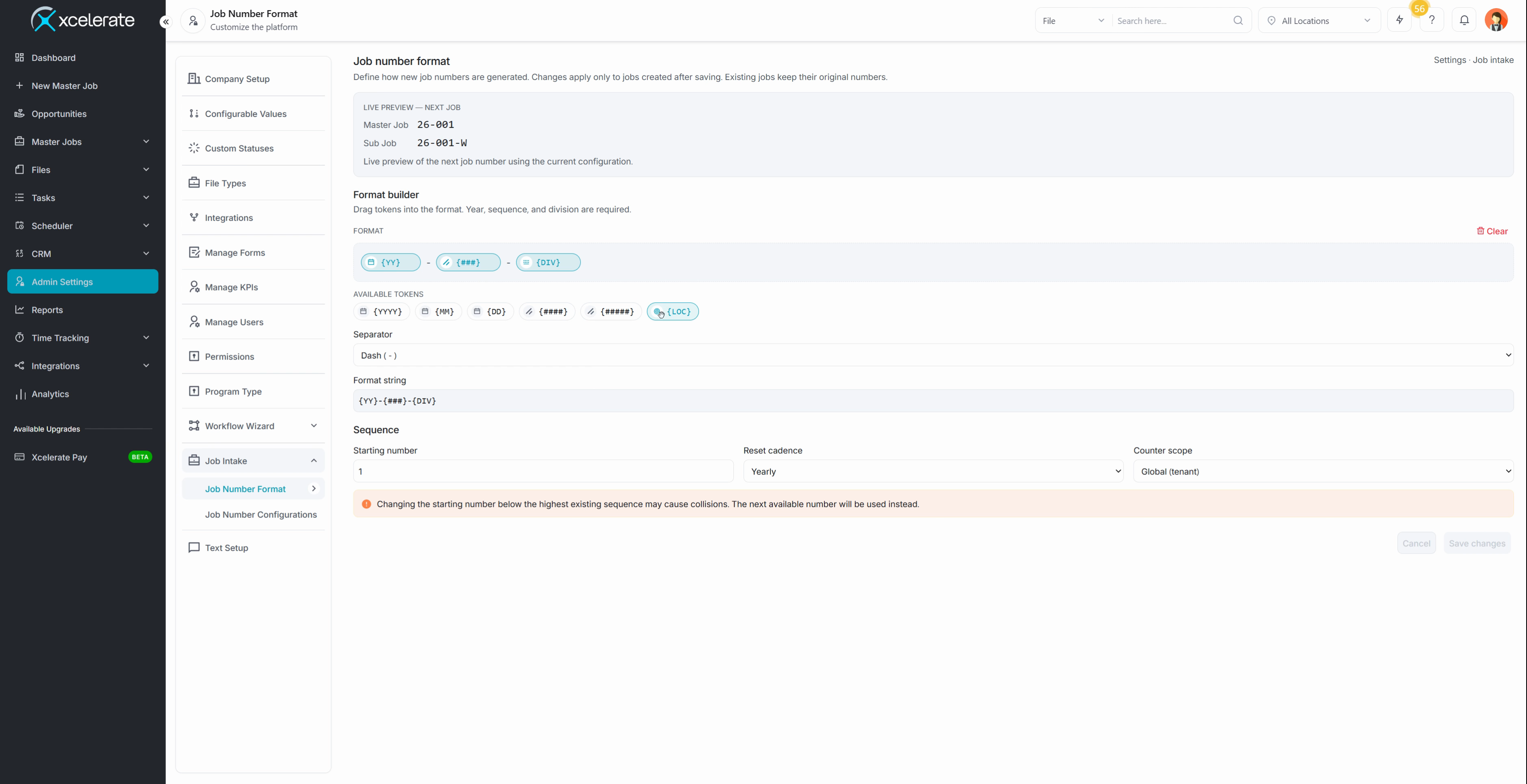
Step 8: Drag Location into the spot in the job number sequence where you want it to appear. In this example, it goes at the beginning.
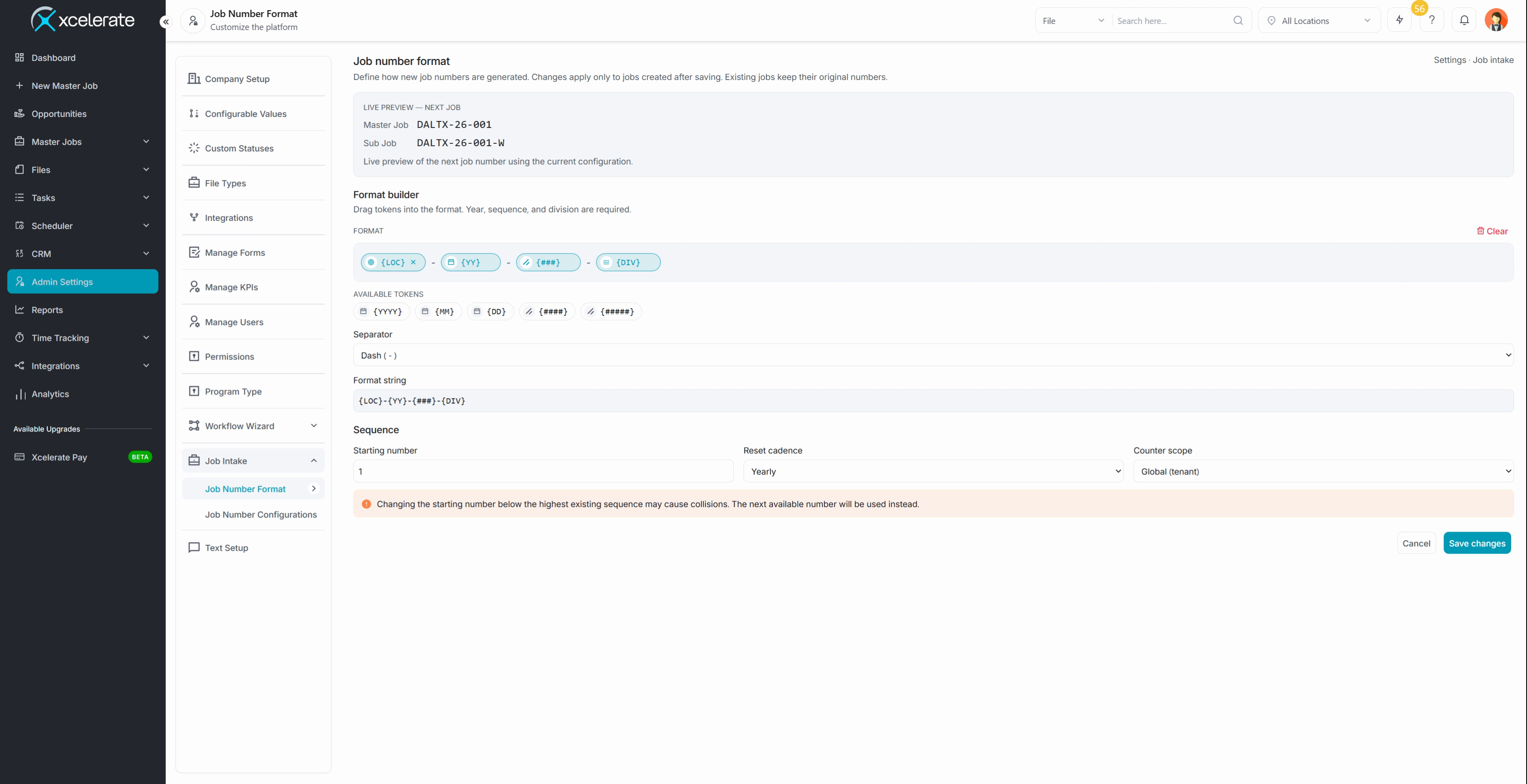
Step 9: Open the Separator dropdown and choose how to separate the tokens. Your options are dash, slash, period, or an underscore.
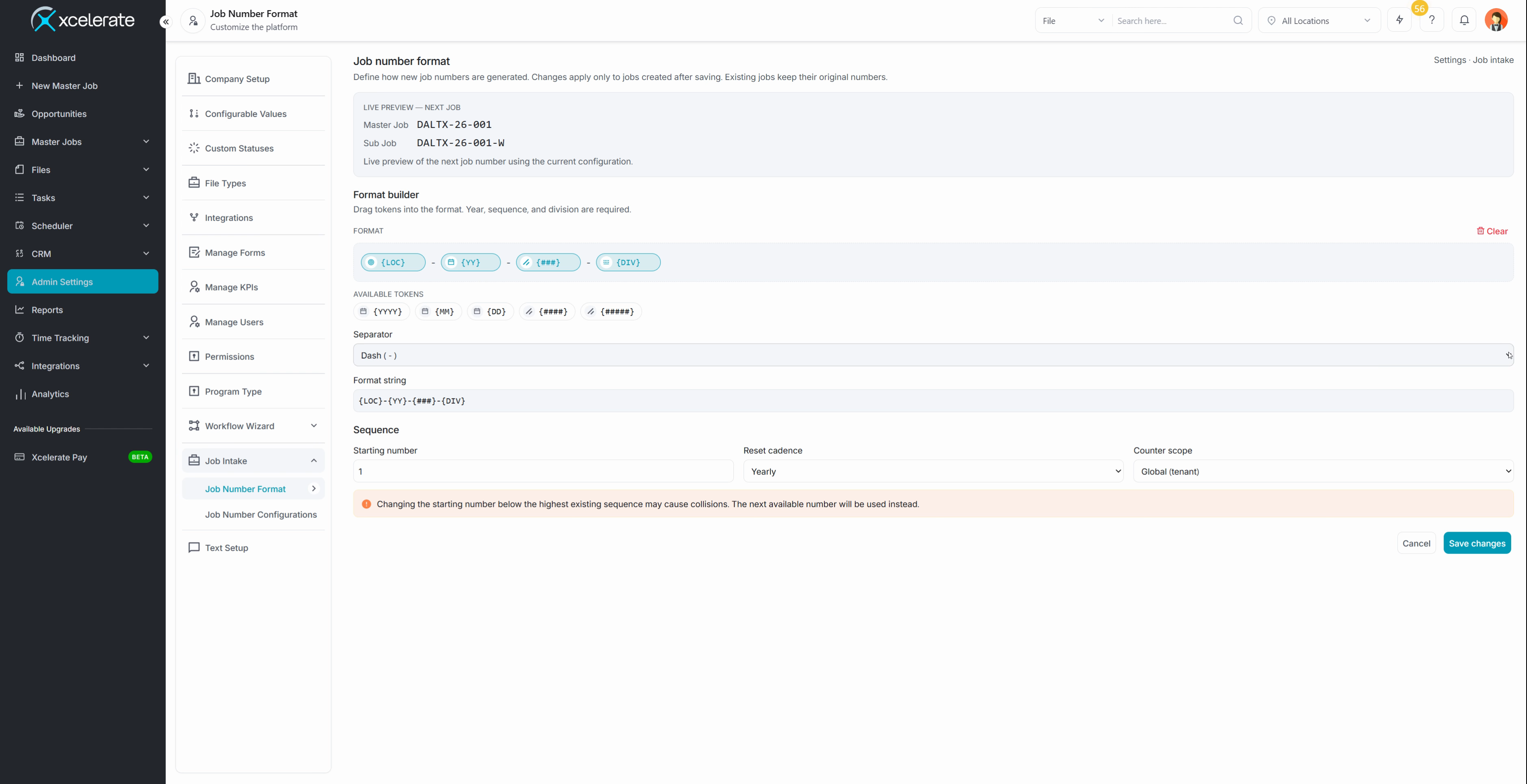
Step 10: Check the format string. It previews how your job numbers will look.
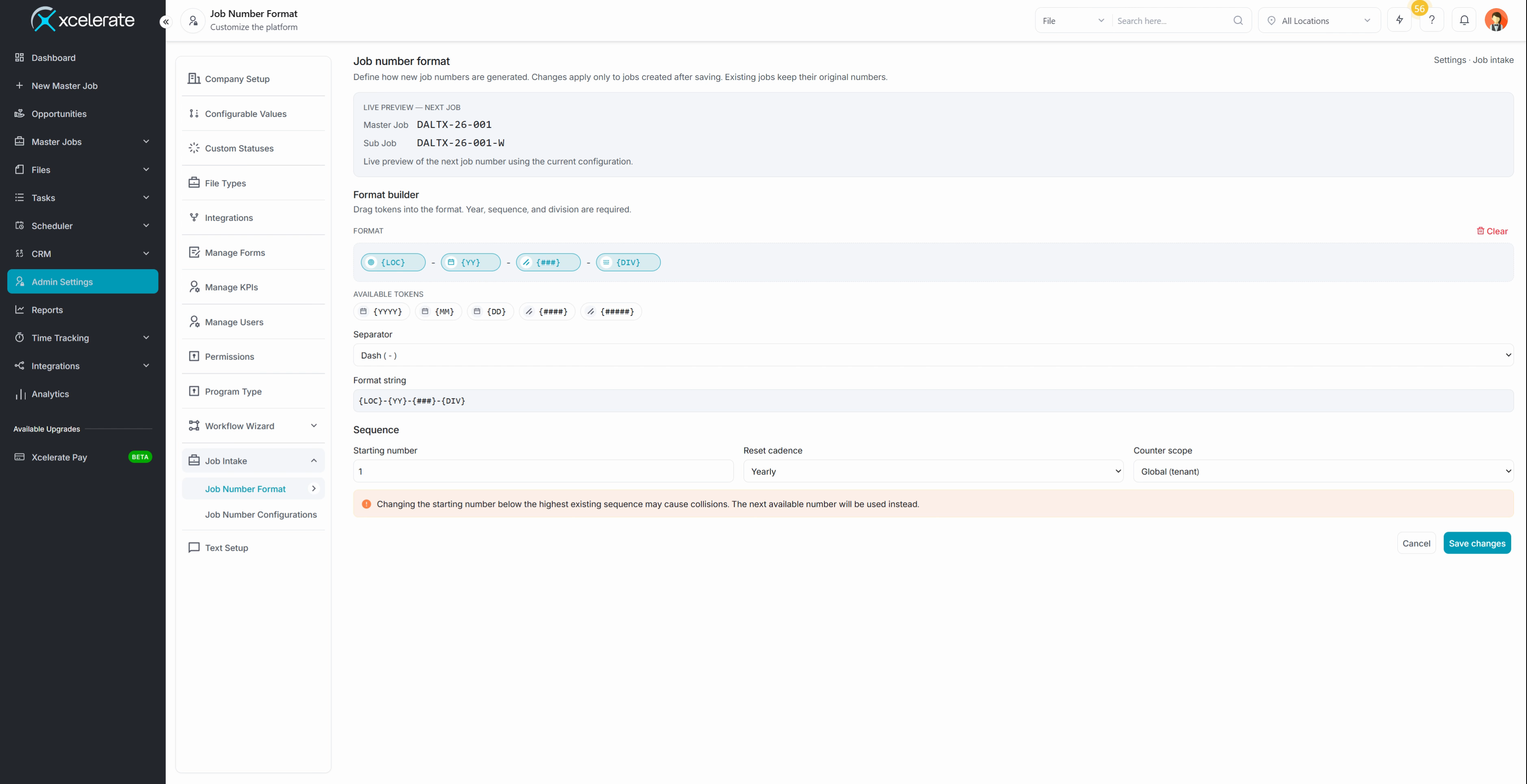
Step 11: Enter your Starting Number. This is your starting job number.
Step 12: Choose a Cadence to decide when job numbers reset. Pick yearly, monthly, or never.
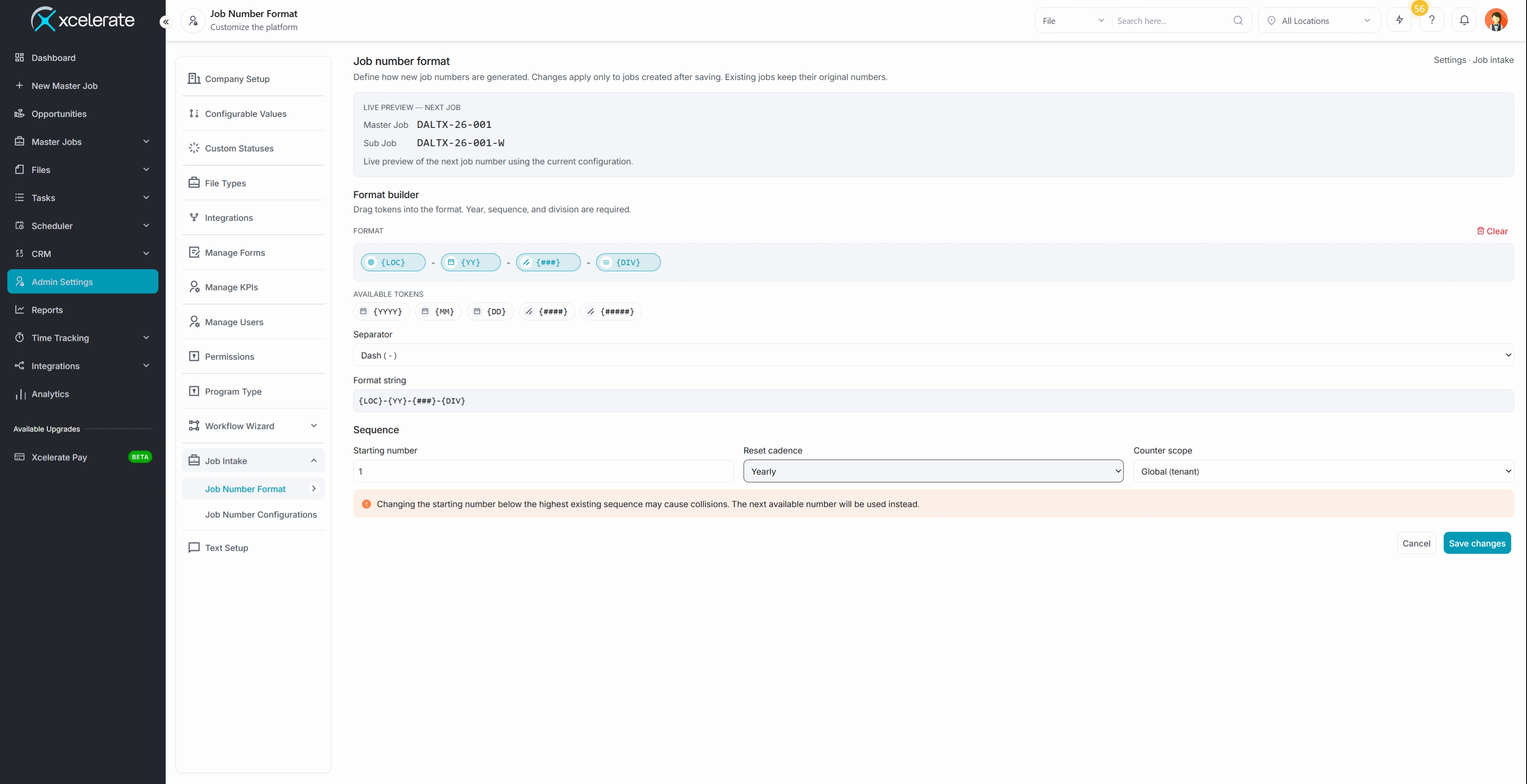
Step 13: Select Save Changes. Xcelerate shows you how your job numbers looked before and how they will look after the change.
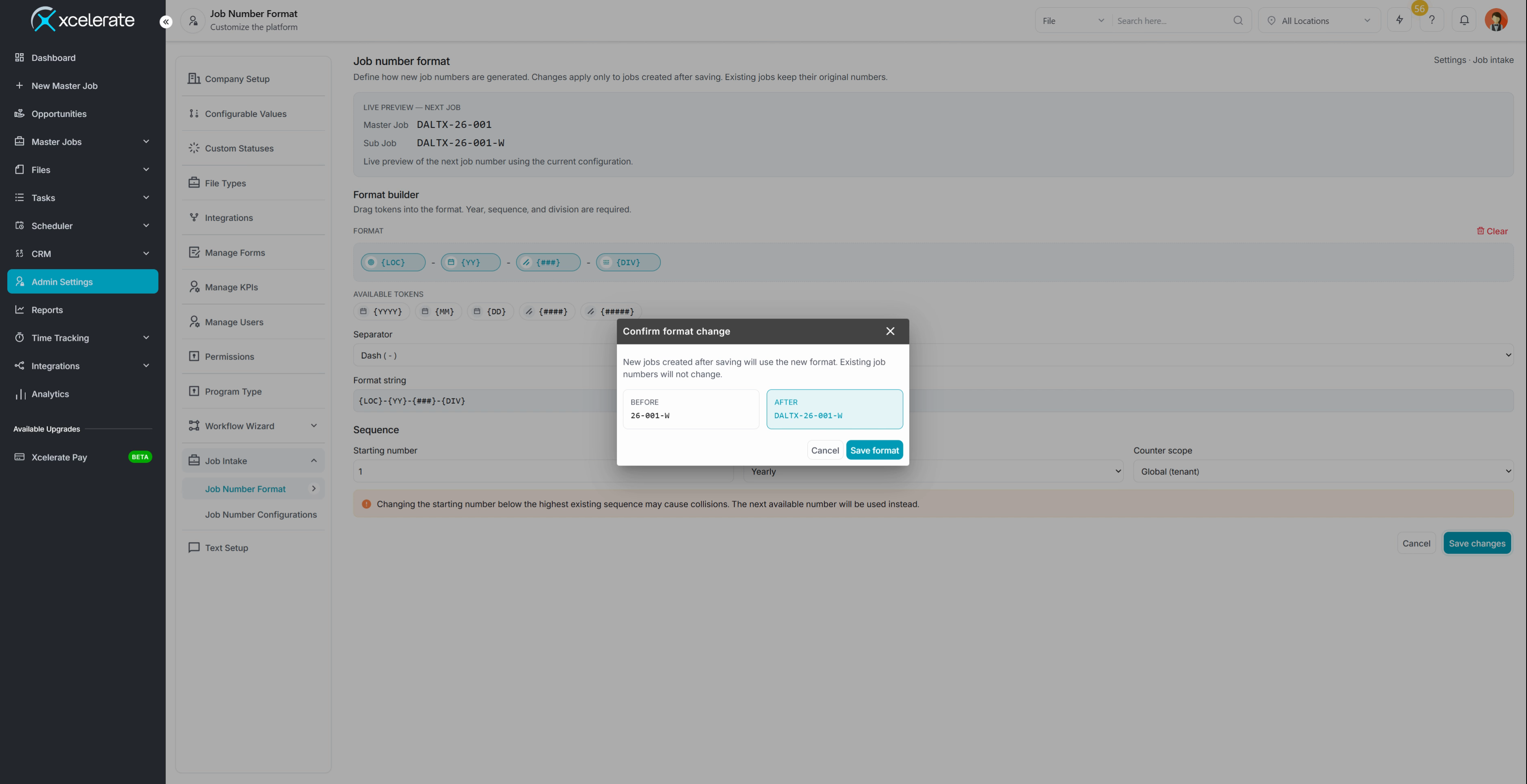
Step 14: Save the format.
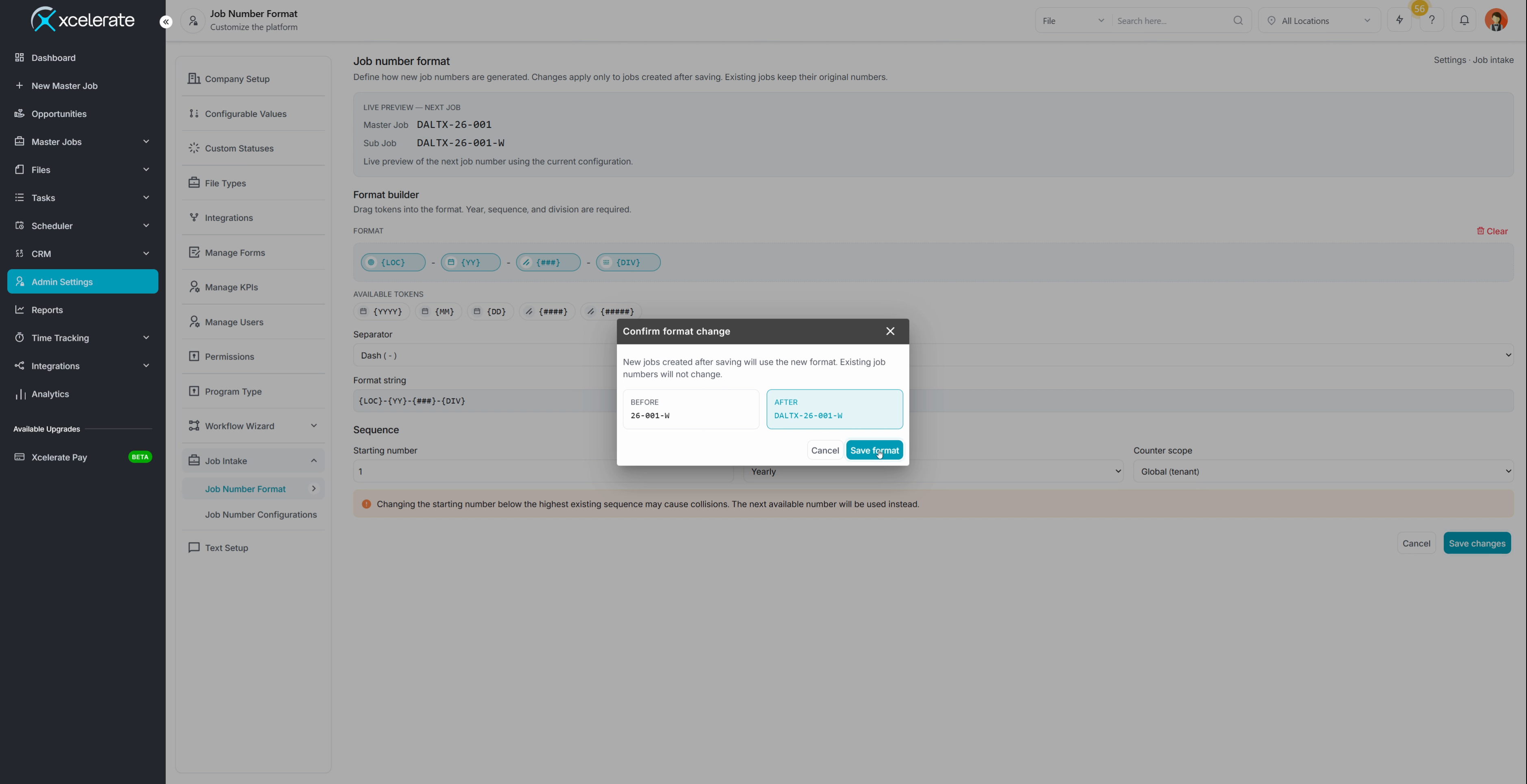
Keep Your Job Numbers Under 18 Characters
Your custom job number must be under 18 characters. If you add more fields, you will see an error at the top of the screen. It warns you that the job number will exceed 18 characters once the Sub Job or File is added.
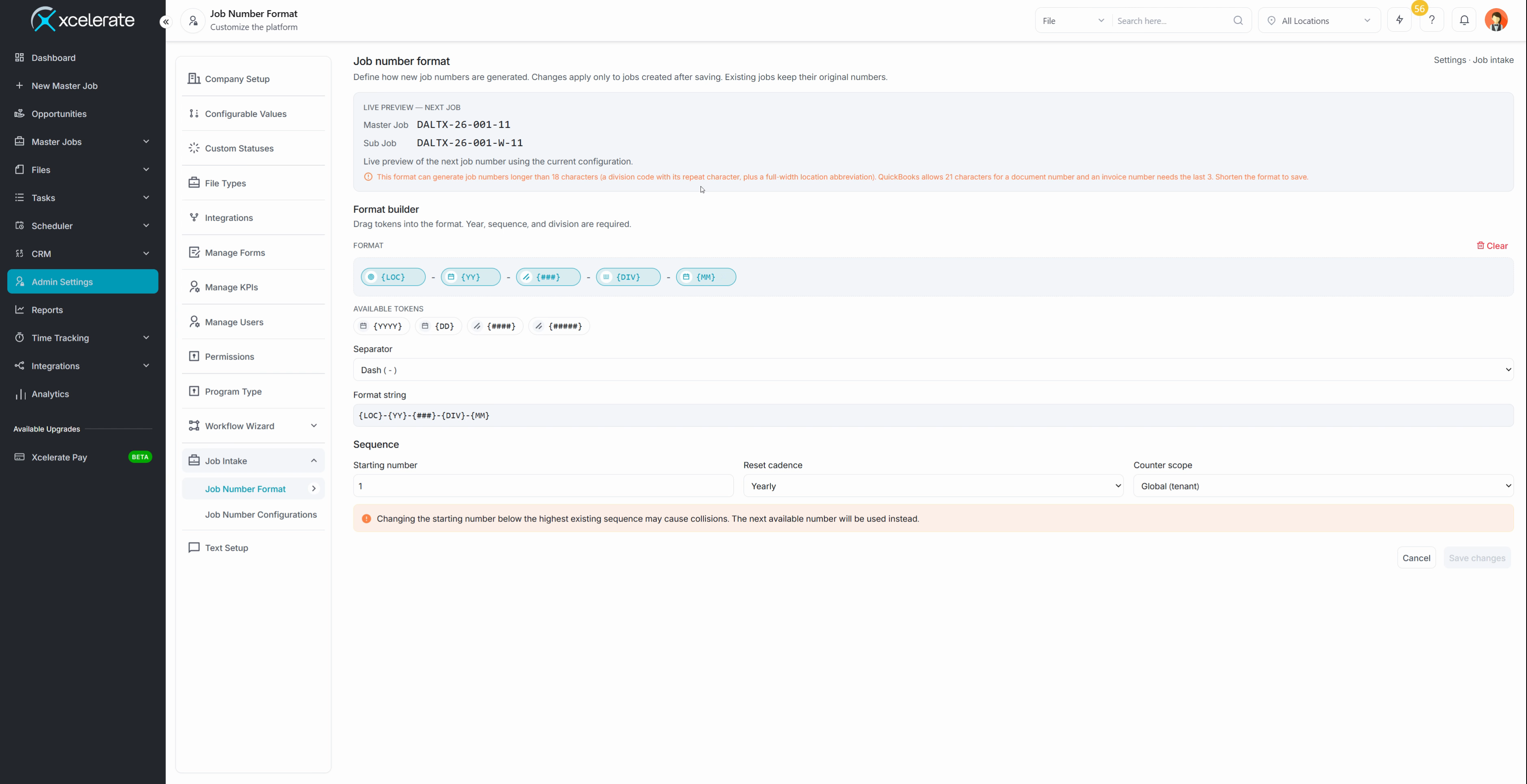
The limit exists because QuickBooks accepts only 21 characters.
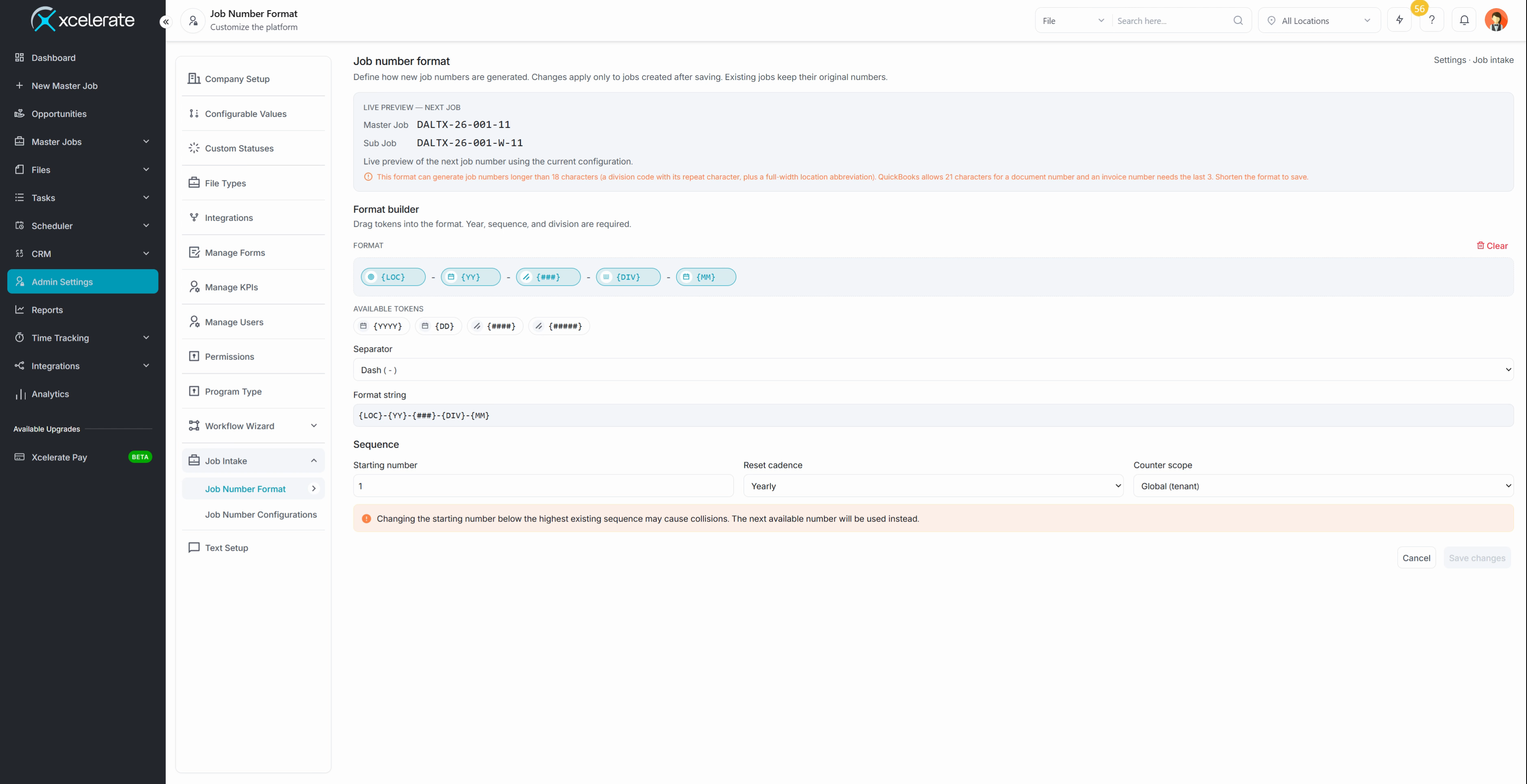
That's it! You have set up custom job numbers in Xcelerate. Remember to keep your format under 18 characters, and set your location abbreviations so each job number shows exactly what you want.
Published 11/2026